
Dreamweaver is a commercial professional-grade software application that works across Mac and Windows platforms for composing web pages, a part of a large suite of applications by Adobe for media composition. One of its features is the ability to create hotspots (also called image maps). Though hotspot work can be done well with Dreamweaver, there are a wide variety of free graphic and photo editors are available for different platforms.
To use Dreamweaver, it must be bought or used on a short-term trial basis. You institution may have a license for it, or you can "try it for 30 days" by downloading from Adobe's web site.
In addition to significant Help information that is part of the application, there numerous information sites and tutorials available across the Net. Merely searching for Fireworks and the feature you need, such as Fireworks and hotspots or imagemaps, can provide a variety of different approaches and techniques. Like all major applications, a number of books are also available for purchase. One of theses approaches will probably work for your current level of skill but be careful to find a tutorial as close to the version of the software being used.
First, see an example of a pond picture with hotspots, a frameset design that uses other web sites and local files. Explore it and complete the survey if you have not already done so.
See the image below. 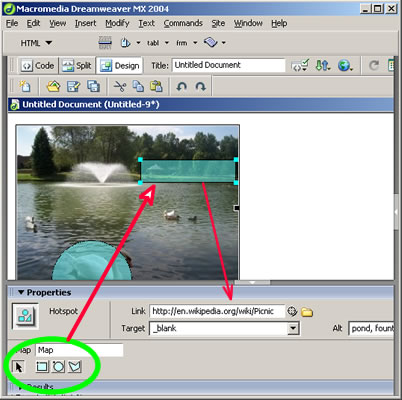 To put hotspots on an image with Dreamweaver, first select File then New to start a new web page, or open an existing web page. Insert an image file. Next, click one of the icons found in the green circle in the screen shot of Dreamweaver.
Once the hotspot shape tool is chosen, click and drag on the image around the region the needs to be the hotspot. Next follow the red area and enter the information for the file to be linked: he file name or web address, an Alt description of the image and the target frame. Create as many hotspots as needed.
To save the imagemap of the hotspots, click File, then Export Preview, then Export. Fireworks will put the .htm on the end of the file name and save both the web page and image to the designated folder. See an example which does not place it in a frameset.
Both the .html page which contains the image map of the hotspots and the image that will be the background for the hotspots must be put in the folder with the rest of the files used at the web site in the frame set. The web page (.html file) should be targeted or linked to appear when needed.
= = = = =
Page author: Bob Houghton